Two ways to turn your weather story into video.
Build a Storyboard Video from graphics, clips, captions, and music, or record a presenter-led Quick Shot while moving through your weather graphics.
Storyboard Video
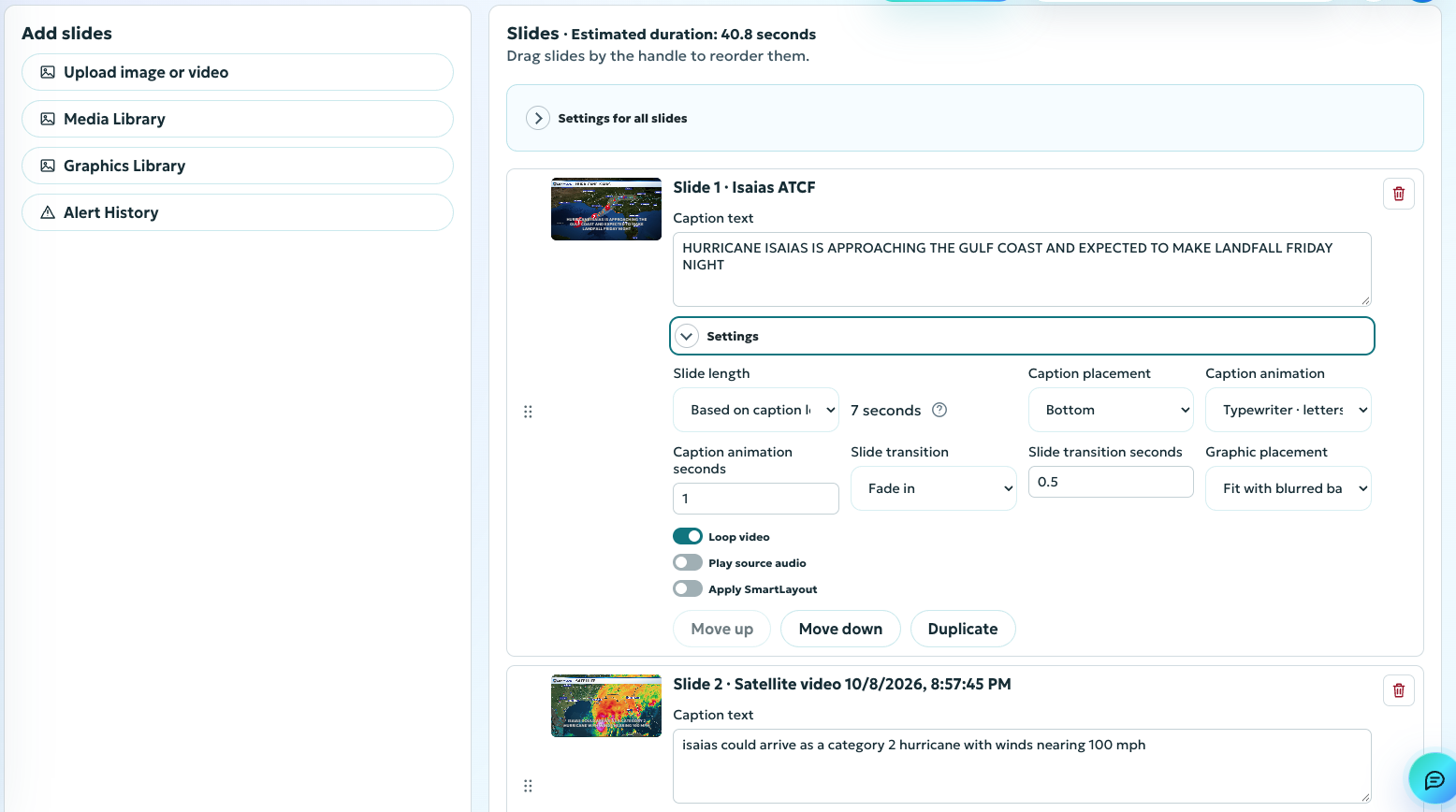
Create a finished weather video without recording yourself.
Make a finished weather video from graphics, images, and clips without a camera or microphone take. Add slides from the Graphics Library, Media Library, or Alert History, or upload your own images and videos.
- Choose your media. Bring the graphics, images, and clips for your update into one story.
- Build your slides. Write captions, set timing, and add transitions, slow zooms, and music.
- Brand and export. Apply a Social SmartLayout, preview the sequence, and render a finished MP4.
You’ve got the graphics. Let’s make a video.
You know what your audience needs to hear. Pick the graphics that tell the story, add a few lines of text, and choose the music. Storyboard Video brings it all together, without asking you to step in front of a camera.
Press play on this Isaias demo. You’ll see the maps, clips, and captions working together to walk viewers through the update. Then imagine your next forecast with your graphics and your branding.
Quick Shot
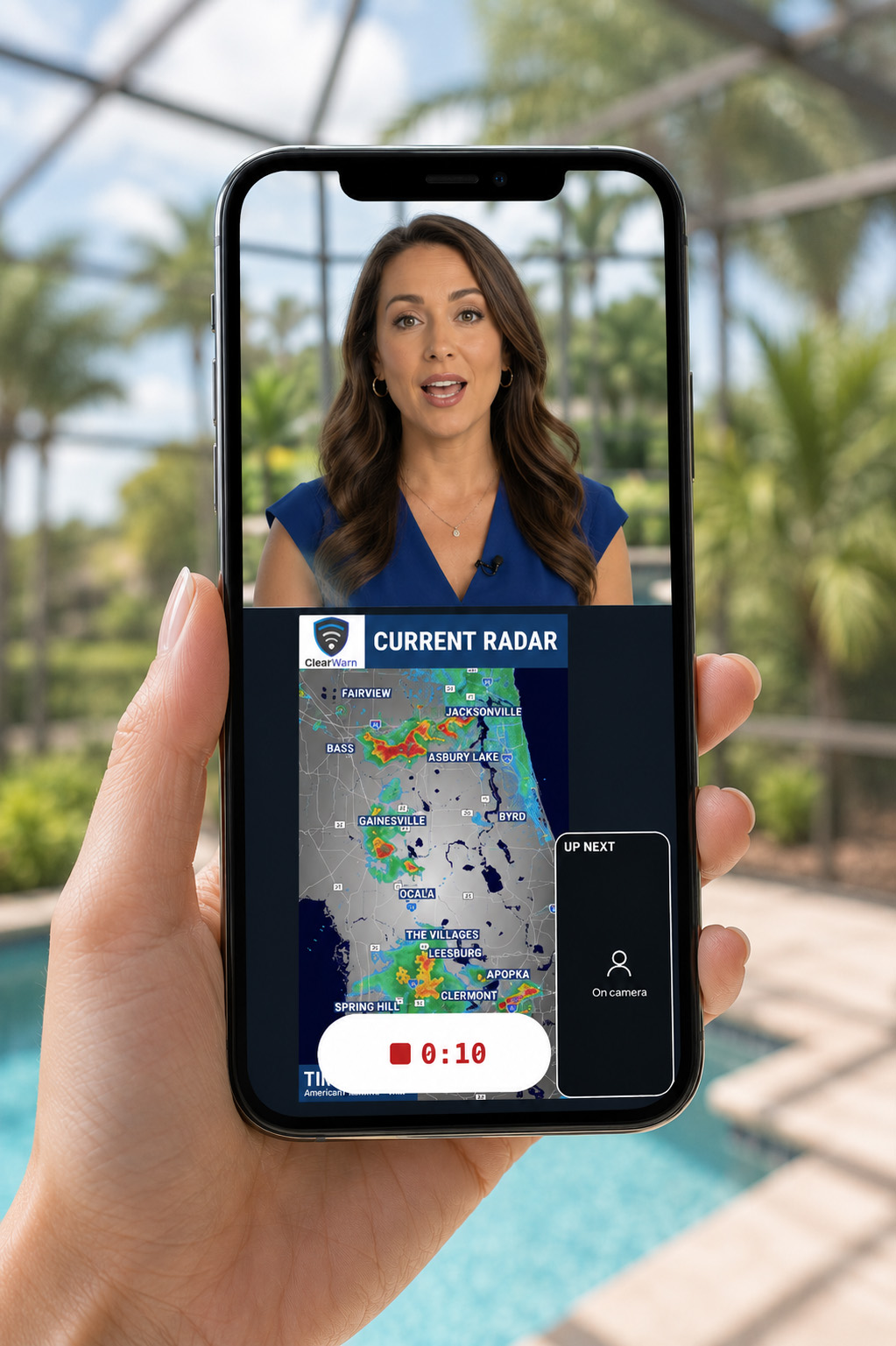
Put yourself in the weather story.
Explain the forecast in your own voice. Quick Shot records one continuous camera and microphone take as you move through graphics, alert imagery, and other media.
- Prepare your story. Choose the graphics and media you want to present, then arrange them in order.
- Choose your view and record. Use a full-screen or split layout and advance the slides as you speak.
- Caption and export. Generate burned-in captions with word highlighting and styling that fits your project.
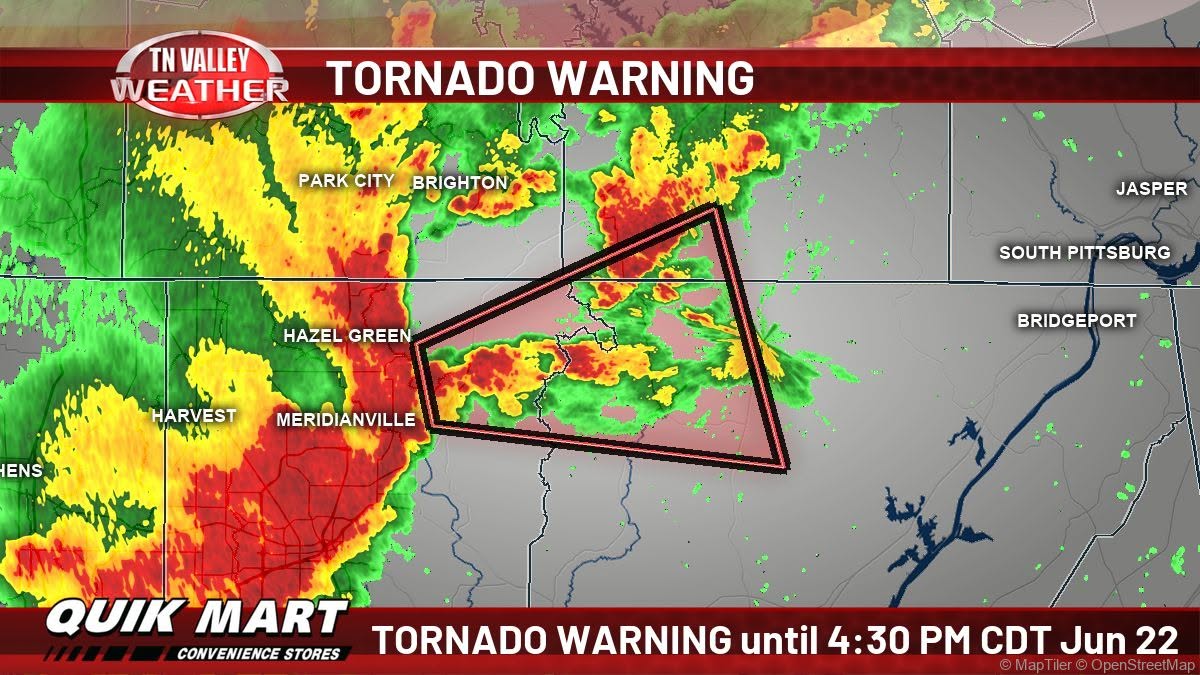
Your content. Your branding. Your format.
Storyboard Video and Quick Shot both start with content from your Graphics Library, Media Library, or Alert History. Create branded videos in vertical, square, or landscape formats to suit the places you publish.
Automations can also assemble a Storyboard Video or Quick Shot draft with your graphics in order, ready for review or recording.
See video automationStart creating with ClearWarn Pro.
Build a video slide by slide, or step in front of the camera. Choose the approach that fits your next weather update.
Start Free